
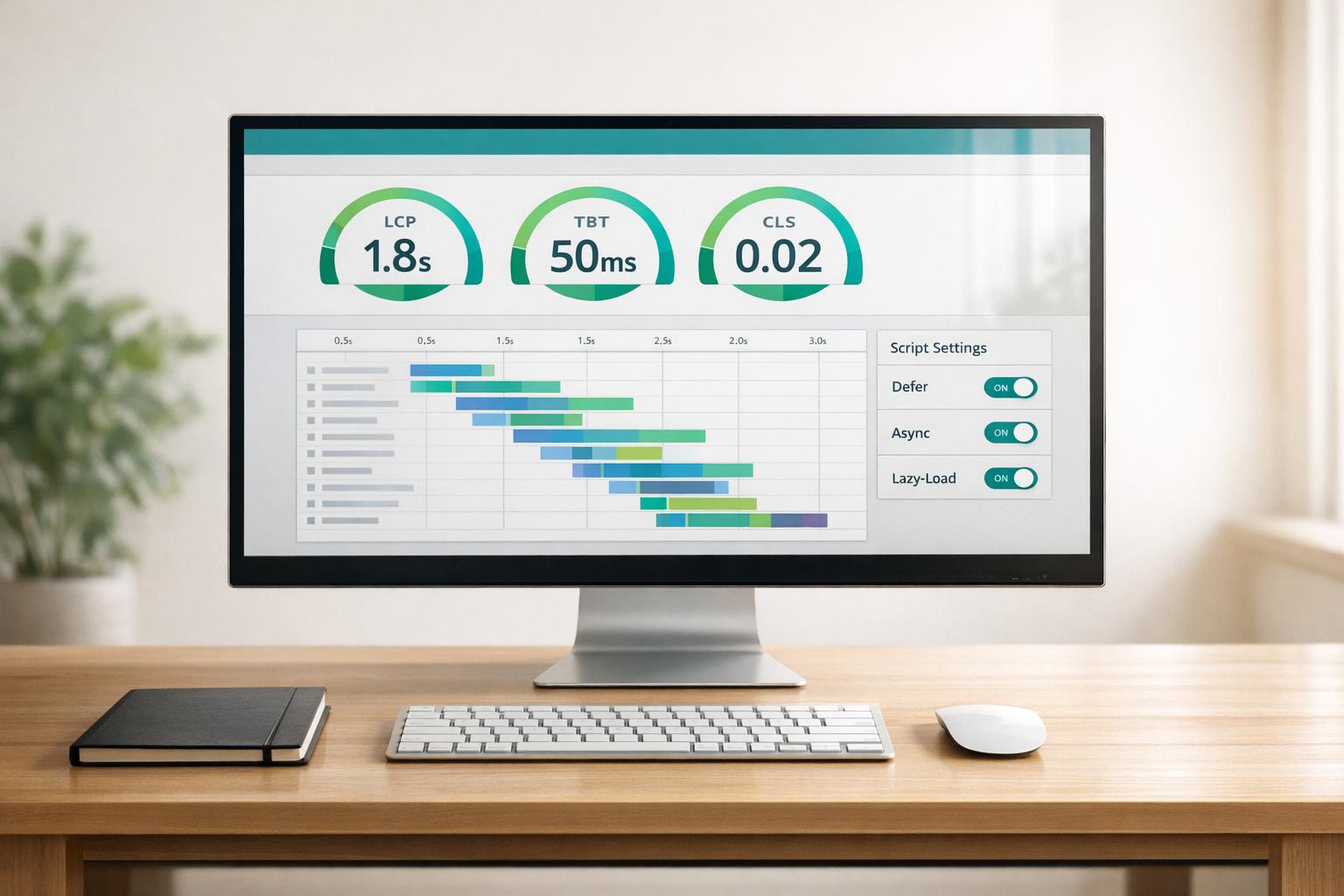
Third-party scripts can significantly impact your website’s performance, especially its Core Web Vitals. These scripts – like analytics tools, social media widgets, or ads – often block rendering, slow down interactivity, and cause layout shifts. To fix this, follow these steps:
- Identify all third-party scripts: [Use tools like Chrome DevTools, Lighthouse, and WebPageTest](https://searchxpro.com/how-to-test-core-web-vitals-with-free-tools/) to map out scripts and assess their impact.
- Measure performance impact: Block scripts and compare Core Web Vitals metrics like Largest Contentful Paint (LCP) and Total Blocking Time.
- Optimize script loading: Use
async,defer, or lazy loading for non-critical scripts. Self-host scripts or cache them for better control. - Set performance budgets: Limit script size, blocking time, and quantity to maintain speed.
- Monitor and review regularly: Audit scripts periodically, assign ownership, and implement a script approval process.
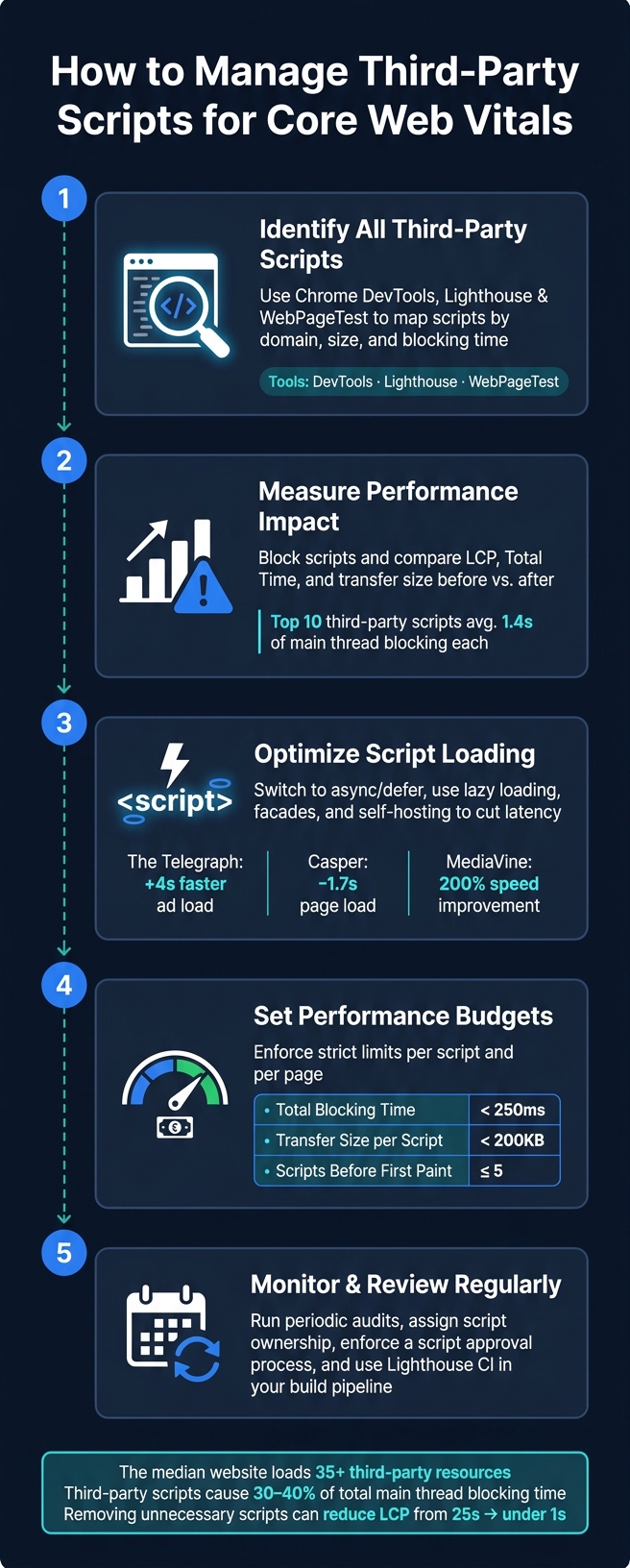
How to Manage Third-Party Scripts for Core Web Vitals
How to Reduce the Impact of Third-Party Code For Faster Speeds | Core Web Vitals Part 13
Step 1: Find and Map Your Third-Party Scripts
Before tackling performance issues, you need a clear view of what’s running on your site. Most websites rely on third-party scripts, often added piecemeal by different teams over time. This results in a cluttered mix of analytics tools, ad trackers, chat widgets, and A/B testing scripts, often without a complete inventory. The first step is understanding how each script impacts performance so you can decide how to manage them.
Tools for Identifying Scripts
Here are three tools that can help you identify and analyze third-party scripts:
Chrome DevTools: This is a great starting point. Open the Network panel, right-click any column header, and enable "Domain" to group requests by origin. This will show all external domains contributing to your page. For a deeper dive, switch to the Performance panel, record a page load, and go to the Bottom-up tab. Select "Group by product" to see which third-party services are consuming the most main thread time. You can also use the "Dim 3rd parties" option on the flame chart to gray out your code and highlight third-party activity, making it easier to spot heavy resource users.
Once you’ve grouped the scripts, you can move on to more detailed analysis with Lighthouse and WebPageTest.
Lighthouse: This tool provides a structured audit. The "Third-party usage" section lists all detected services, showing their transfer size and main thread blocking time. Additionally, the "Reduce JavaScript execution time" and "Avoid enormous network payloads" audits can pinpoint scripts with the biggest performance impact.
WebPageTest: This tool offers even more insights. The Domain Breakdown view displays total bytes and request counts for each external origin. The "Third Parties" view includes columns for CPU time and blocking time for every detected service. There’s also a Single Point of Failure (SPOF) tab, which identifies potential risks if a third-party domain goes offline.
A quick tip: Always run these audits in Incognito mode. Browser extensions can appear as third-party scripts and skew your results.
Organizing Scripts by Purpose and Impact
Mapping out your scripts is essential to link their performance effects to Core Web Vitals. Once you’ve identified all scripts, document key details in a spreadsheet. Include the service name, domain, file size, main thread blocking time, the team responsible, and the business purpose. Don’t forget to include tags managed through your tag manager, as it can silently load outdated or unnecessary scripts from expired campaigns.
"A common theme with websites that are being slowed down due to vast amounts of third-party tags, is this part of the website is not owned by a single person or team, and therefore falls between the cracks." – Chris Anstey and Antoine Bisch
Group scripts into categories like Analytics, Advertising, Social Media, A/B Testing, and Customer Support. This organization helps you decide which scripts to prioritize, which to adjust, and which to remove. For instance, the top 10 most common third-party scripts average 1.4 seconds of main thread blocking time each, but their business value varies widely.
Here’s an example of how scripts can be categorized:
| Script Category | Example Services | Impact |
|---|---|---|
| Analytics | Google Analytics 4 (~30KB) | Low |
| Social Media | Facebook Pixel (~170KB, 4 HTTP requests) | High |
| Customer Support | Zendesk (500KB, 2.3MB unzipped), Intercom (~150KB) | High–Medium |
| A/B Testing | Optimizely | High |
| Chat | Drift (200–400KB), Crisp (~100KB) | High–Low |
Step 2: Measure Script Performance
Once you’ve identified and mapped your third-party scripts, the next step is to evaluate how each one impacts your site’s performance. This step is all about understanding how scripts influence critical metrics like Largest Contentful Paint (LCP), so you can make smarter optimization decisions.
Measuring the Effect on Core Web Vitals
One effective way to measure a script’s performance impact is by using the Network panel in Chrome DevTools. Block a specific script and compare key metrics before and after. This gives you a clear picture of what each script costs in terms of performance.
Lighthouse is another useful tool. It flags scripts that block the main thread for more than 250ms and provides transfer size details per origin. To get an accurate sense of real-world impact, run tests under Fast 3G conditions and simulate a 4x CPU slowdown – this is especially important for understanding performance on mid-range mobile devices. This is a key component of a comprehensive mobile SEO audit.
WebPageTest offers side-by-side filmstrips and domain-level breakdowns, making it easy to spot performance bottlenecks. For example, a poorly optimized third-party script can delay LCP by over 25 seconds in extreme cases. Similarly, YouTube embeds can significantly slow down mobile sites, with blocking times lasting several seconds.
"YouTube embeds block the main thread for 4.5 seconds for 10% of the websites on mobile, and at least 1.6 seconds for 50% of the websites studied." – Chrome DevRel
For more granular insights, the Long Tasks API (via PerformanceObserver) can pinpoint tasks lasting over 50ms and attribute them to specific third-party iframes using the containerSrc property. This helps bridge the gap between synthetic testing tools and the real-world experiences of your users.
Setting Performance Limits for Scripts
Measuring performance is only half the battle – you need to act on the data. This is where performance budgets come into play. By setting clear limits, you can control how much impact third-party scripts are allowed to have on your site. For example:
- Total blocking time: Cap at 250ms across all third-party scripts.
- Transfer size per script: Limit to 200KB.
- Number of scripts before first paint: No more than five.
These thresholds create a framework for enforcing performance standards. As web.dev explains:
"If we stick to <5 tags on our Landing Pages along with our own optimized JS, we’re confident the Total Blocking Time (TBT) can hit ‘good’ in the Core Web Vitals."
To help you choose the right tools for specific tasks, here’s a quick summary:
| Tool | Best Use Case | Key Metric |
|---|---|---|
| Lighthouse | Lab audit | Main thread blocking time |
| Chrome DevTools | Isolating a specific script | Load time delta (with vs. without script) |
| WebPageTest | Comparative before/after testing | Side-by-side filmstrip, domain breakdown |
| PerformanceObserver | Real user monitoring | Long task attribution to specific iframes |
Step 3: Control How Scripts Load
To improve performance, it’s essential to optimize how scripts load. The method you choose for loading scripts can have just as much impact as whether the script loads in the first place.
Choosing the Right Loading Method
Switching from synchronous loading to async or defer can make a big difference. A standard <script> tag stops the browser from parsing HTML until the script is fully downloaded and executed. Both async and defer allow scripts to download in parallel, but they differ in when they execute.
| Loading Method | Pauses HTML Parsing? | Execution Timing | Best For |
|---|---|---|---|
| Synchronous | Yes | Immediately upon discovery | Critical UI libraries (rarely recommended for third-party) |
async |
Yes (during execution only) | As soon as download finishes | Independent analytics, ads |
defer |
No | After HTML parsing is complete | Scripts needing the DOM, dependent libraries |
| Lazy Load | No | On scroll or interaction | Below-the-fold ads, videos, chat widgets |
For most third-party scripts, defer is a solid default. Use async for scripts that don’t depend on the DOM, like analytics. This adjustment can have a real-world impact. For example, in 2019, The Telegraph deferred all third-party scripts (ads and analytics included) and achieved an average improvement of four seconds in ad load times.
Similarly, MediaVine, an ad management platform, introduced lazy-loading for ads in 2019. This change resulted in a 200% improvement in page load speeds for their publishers.
Delaying or Conditionally Loading Scripts
Not all scripts need to run immediately. For non-essential scripts, such as chat widgets, consider loading them only when necessary. Techniques like requestIdleCallback or the facade pattern can help. For instance, instead of loading a chat widget’s large script on page load, you can use a placeholder image or button that loads the full script only when clicked.
Another effective tweak is auditing your Google Tag Manager (GTM) container. Move non-critical tags from "All Pages" to "Window Loaded" triggers. This small adjustment can significantly reduce blocking time during page load.
Self-Hosting and Caching Scripts
You can further enhance performance by self-hosting scripts. Third-party scripts often introduce delays due to DNS lookups and handshake overhead, adding 100–500ms of latency. Self-hosting eliminates this issue entirely.
For example, in 2019, Casper moved an A/B testing script from a vendor’s CDN to their own servers. This simple change shaved 1.7 seconds off their page load time by avoiding external DNS lookups and enabling better control over caching.
"Self-hosting third-party scripts is an option that gives you more control over a script’s loading process." – Milica Mihajlija, web.dev
However, self-hosting comes with maintenance challenges. Unlike CDN-hosted scripts, self-hosted ones don’t update automatically, so you’ll need to regularly check for vendor updates. If managing updates feels overwhelming, service workers offer a middle ground. They let you cache third-party scripts locally and control how often they’re refreshed – without fully taking on the maintenance burden. For sites heavily reliant on tracking, moving scripts server-side (covered in the next step) might be worth exploring.
Step 4: Build a Long-Term Script Management Plan
After identifying, measuring, and controlling script loading, the next step is to ensure your site’s performance remains optimized over time. A structured plan for monitoring and managing scripts will help preserve your Core Web Vitals and maintain a smooth user experience.
Enforcing Performance Limits and Monitoring
Setting strict performance limits is key to managing third-party scripts effectively. Define a performance budget that outlines acceptable thresholds for script-related impacts. Use the metrics from earlier steps to guide these limits, as shown below:
| Metric | Long-Term Performance Goal | Tool for Monitoring |
|---|---|---|
| Total Script Size | Less than 200 KB (compressed) | Lighthouse / WebPageTest |
| Main Thread Blocking | Less than 250 ms | Lighthouse CI |
| Script Count | Fewer than 5 per page type | Tag Manager Audit |
| Long Tasks (RUM) | 0 tasks exceeding 50ms | PerformanceObserver API |
Once these budgets are in place, automate enforcement. Tools like Lighthouse CI can integrate into your build process to flag and block deployments if new or updated scripts exceed these limits. For ongoing monitoring in production, use the PerformanceObserver API to track long tasks and tie delays to specific third-party scripts.
Creating a Script Approval Process
To prevent unnecessary or poorly optimized scripts from being added, establish a formal approval process. Before any script goes live, it should answer essential questions: What is its purpose? Does it need to load on all pages or just specific ones? Who will manage it? When should it be reviewed or removed? This ensures every script aligns with your performance goals.
Performing a DIY SEO audit regularly is just as important. Schedule periodic reviews to identify and remove unused or redundant scripts. Assigning ownership to each script is critical – The Telegraph demonstrated this in 2021 by eliminating scripts without clear owners, which helped streamline their tag management.
Security and compliance must also be part of this process to ensure scripts are deployed safely.
Improving Security and Privacy
Managing third-party scripts isn’t just about performance; security is a major consideration. Start by implementing a Content Security Policy (CSP). Use the script-src directive in your HTTP headers to specify trusted domains, preventing unauthorized or malicious scripts from running.
For scripts hosted locally or delivered via a CDN, include Subresource Integrity (SRI) hashes to verify their integrity. Additionally, use tools like WebPageTest to simulate Single Point of Failure (SPOF) scenarios. This helps you understand how your site behaves if a vendor’s server goes down – some scripts can delay page rendering by 10 to 80 seconds in such cases. Restricting access to your tag manager is another way to minimize unauthorized script additions.
Conclusion: Key Steps for Managing Third-Party Scripts
The median website loads over 35 third-party resources. These scripts can contribute to 30% to 40% of the total main thread blocking time, underscoring their often-overlooked impact on performance.
The solution starts with understanding what’s running on your site. Audit your third-party scripts and assess their actual cost. For instance, removing unnecessary third-party scripts from e-commerce pages has shown to reduce LCP (Largest Contentful Paint) from over 25 seconds to under 1 second in controlled tests. Such improvements can significantly affect whether visitors stay on your site or leave.
Focus on scripts with the highest blocking times first. Use tools like Chrome DevTools’ Request Blocking to simulate their removal and measure the impact. Then, optimize by implementing defer or async loading, using facades, and setting a performance budget to avoid regressions.
These initial steps lay the groundwork for technical SEO success. However, maintaining performance requires consistent effort. Regular audits, assigning clear ownership for scripts, and limiting access to tag management tools are critical to avoiding unnecessary tag buildup. For those looking to integrate this into a broader SEO strategy, SearchX offers technical SEO audits to identify where third-party scripts may be slowing your site and provides actionable recommendations.
"There’s nothing more frustrating than optimizing your website… only for the speed to regress in production because of tags that are being added." – Chris Anstey and Antoine Bisch, web.dev
Start with one audit today. The performance improvements and the boost in user experience make it more than worth the effort.
FAQs
Which third-party scripts should I optimize first?
To improve Core Web Vitals metrics like Largest Contentful Paint (LCP), Interaction to Next Paint (INP), and Cumulative Layout Shift (CLS), start by fine-tuning third-party scripts. These scripts – such as analytics trackers, ad tags, and social media embeds – often block the main thread or introduce delays, negatively affecting performance.
You can address these issues by:
- Deferring scripts: Load them only after the main content has rendered.
- Using asynchronous loading: Ensure scripts load independently without holding up other processes.
- Leveraging web workers: Offload heavy tasks to web workers to keep the main thread free.
By optimizing how these scripts load and execute, you can significantly enhance your site’s performance.
How can I test real-user impact of third-party scripts?
To understand how third-party scripts impact your site’s performance, tools like Lighthouse and Chrome DevTools are incredibly helpful. Start by running a Performance audit in Lighthouse. Use settings such as Fast 3G and 4x CPU Slowdown to replicate real-world user conditions effectively.
Once the audit is complete, pay close attention to the Diagnostics and Third-party usage sections. These areas will highlight scripts that are either slowing down your site or causing blocking issues. By analyzing this data, you can pinpoint problematic scripts and evaluate their effect on your site’s overall performance.
When should I self-host a third-party script?
If a third-party script is dragging down your website’s performance or Core Web Vitals, it’s a good idea to self-host it. This is particularly important when the script causes delays, blocks the main thread, or slows down your page’s loading speed. By self-hosting, you gain control over how the script loads. You can use strategies like deferring or lazy-loading and apply advanced tweaks to reduce its impact – while still keeping the functionality your site needs.