
Why Local Business Schema is Your Competitive Edge
As search results evolve, more business owners are asking how to add local business schema. Google now features rich snippets, knowledge panels, and map packs that offer improved visibility, all powered by structured data.
Here’s the quick answer:
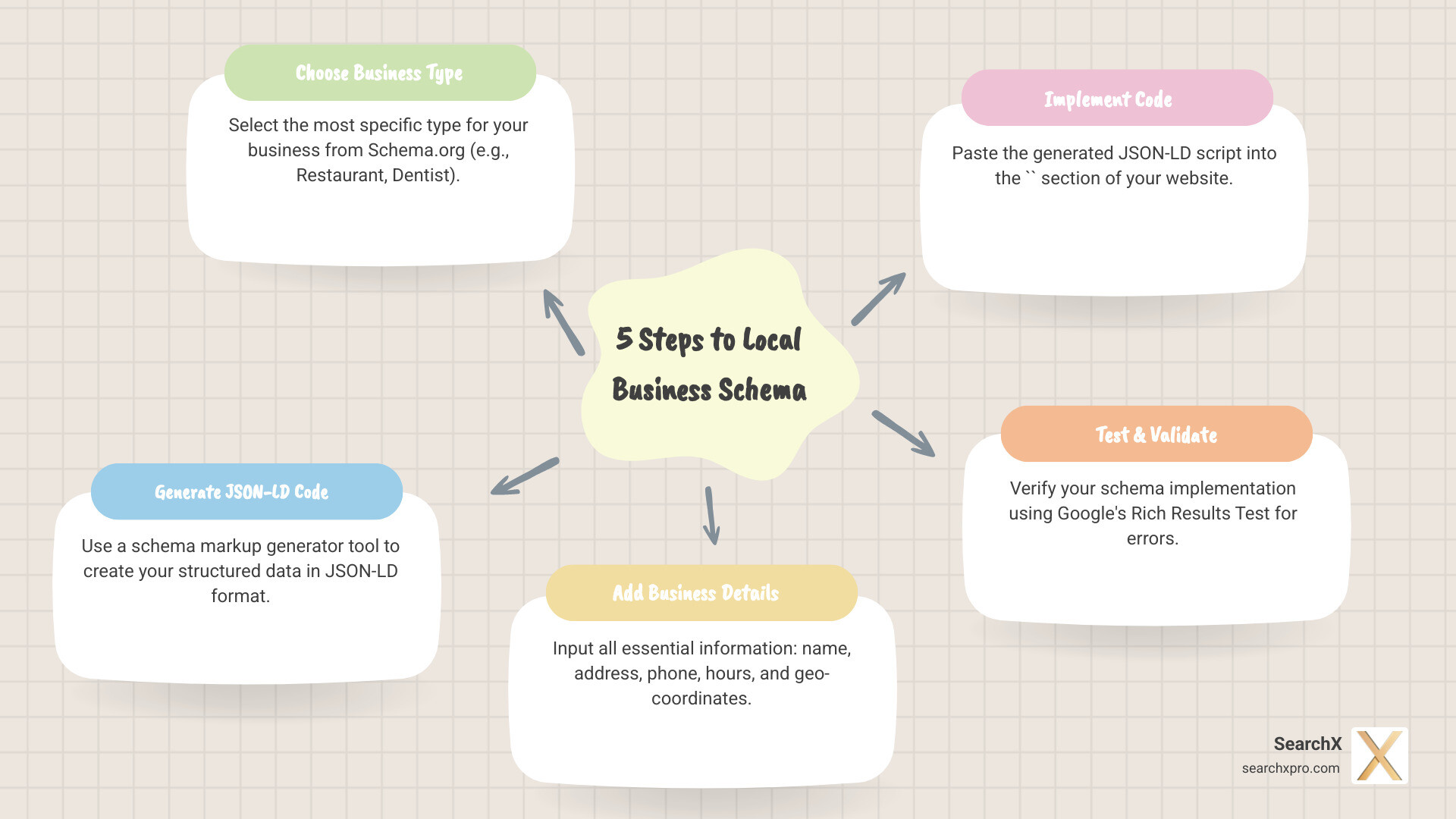
- Choose your specific business type from Schema.org (e.g., Restaurant, Dentist).
- Generate JSON-LD code with a schema markup generator.
- Add your business details like name, address, phone, and hours.
- Paste the code into your website’s
<head>section. - Test and validate using Google’s Rich Results Test.
Local business schema is code that translates your business information into a language search engines understand. Correct implementation can help you appear in Google’s local 3-pack, display operating hours in search results, and show star ratings.
Data shows that rich results from schema can increase click-through rates by 20-30%. With 46% of all Google searches having local intent, this visibility means more foot traffic and phone calls.
This guide will show you exactly how to add local business schema to your website, even if you’ve never touched a line of code.
Preparing Your Information for Schema Markup
Before adding code to your website, gather the necessary information. Proper preparation ensures your schema markup is clean, effective, and works correctly from the start.
Choosing the Most Specific Business Type
A common mistake is using the generic LocalBusiness type. Schema.org offers more specific options that help Google match your business to relevant searches. For example, use Dentist instead of LocalBusiness for a dental practice. Specificity is key.
Schema.org has a detailed hierarchy of business types. LocalBusiness is a subtype of Organization and Place, but it has dozens of its own specialized subtypes.
- If you run a coffee shop, use
CafeOrCoffeeShop. - If you’re an auto repair shop, use
AutoRepair.
You can explore the full list of business types on Schema.org to find the best fit. The rule is to be as specific as possible.
Gathering Required and Recommended Properties
Next, collect the data points (properties) for your schema. Google has required properties (the minimum needed) and recommended properties (for a more useful listing). Always include as many recommended properties as you can.
Here are the essential properties to gather:
| Property | Requirement | Description |
|---|---|---|
| name | Required | Your official business name. |
| address | Required | Your complete physical address (PostalAddress). |
| telephone | Recommended | Your primary business phone number. |
| image | Recommended | A high-quality photo of your business or logo. |
| geo | Recommended | Your geographic coordinates (latitude and longitude). |
| openingHoursSpecification | Recommended | Your business hours for each day. |
| priceRange | Recommended | A general price indicator (e.g., $, $$, $$$). |
| sameAs | Recommended | Links to your social media profiles. |
Your name, address, and telephone (NAP) must be identical everywhere online, including your Google Business Profile and website. This is crucial for local SEO. Learn more about NAP consistency in local SEO and its importance. Having this information ready will make the implementation process much faster.
Preparing Your Information for Schema Markup
To build on the basics, let’s detail some of the most impactful properties for your local business schema. Getting these right can significantly improve how your business is presented in search results, especially in competitive markets like Charleston, Austin, New York, and Miami.
Your business’s Name, Address, and Phone number (NAP) must be identical across your website, Google Business Profile, and all online directories. This consistency is a cornerstone of local SEO.
When structuring your schema, your address property should be a PostalAddress type with individual components:
streetAddress: Your street and building number.addressLocality: The city (e.g., Charleston).addressRegion: The state abbreviation (e.g., SC).postalCode: Your ZIP code.addressCountry: The country code (e.g., US).
To make your listing more compelling, add these recommended properties:
imageandlogo: URLs for a high-quality photo and your official logo.description: A concise summary of your business.geo: Your precise latitude and longitude for “near me” searches.openingHoursSpecification: Detailed opening and closing times for each day.priceRange: A general idea of your pricing (e.g., “$$”).sameAs: Links to official social media profiles to verify your online presence.aggregateRating: Your average customer rating and review count from your website.
Gathering this information creates a complete digital identity for your business. For more on NAP, see our guide on What is NAP Consistency in Local SEO?.
How to Add Local Business Schema: A 3-Step Guide
With your business information organized, you can now generate, customize, and implement your schema markup. This guide keeps it simple, even if you have no coding experience.
Step 1: Generate Your Schema Code
Google recommends using JSON-LD (JavaScript Object Notation for Linked Data). It’s a block of code that you can add to your page without altering existing HTML, making it easier to manage.
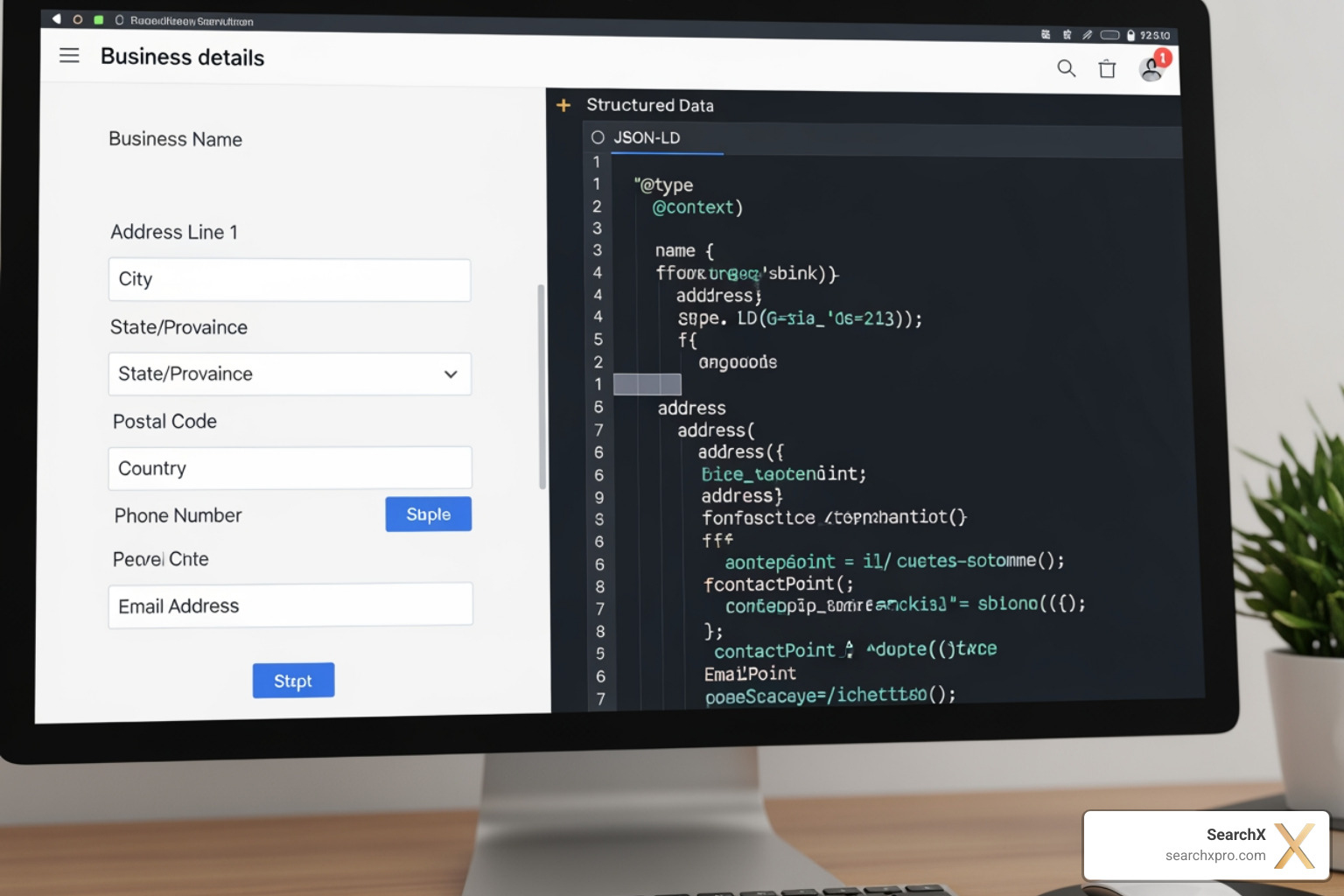
To start, use an online tool like the Schema Markup Generator. Simply enter your business details, and it will output the JSON-LD code. This is the first practical step in learning how to add local business schema.
For a fictional “Charleston Diner,” the basic generated code would look like this:
<script type="application/ld+json">
{
  "@context": "https://schema.org",
  "@type": "Restaurant",
  "name": "The Charleston Diner",
  "address": {
    "@type": "PostalAddress",
    "streetAddress": "123 Main Street",
    "addressLocality": "Charleston",
    "addressRegion": "SC",
    "postalCode": "29401",
    "addressCountry": "US"
  },
  "telephone": "+1-843-555-1234",
  "url": "https://www.thecharlestondiner.com",
  "image": "https://www.thecharlestondiner.com/images/logo.jpg"
}
</script>
This snippet provides the essentials, but we can add more details to make it stand out.
Step 2: Customize Your Markup with Key Details
The generated code is a good start, but adding recommended properties gives search engines a more complete picture.
- Geographic Coordinates (
geo): Add precise latitude and longitude from a site like latlong.net to improve your visibility in “near me” searches. - Opening Hours (
openingHoursSpecification): Display your hours directly in search results. You can specify times for each day of the week. - Reviews and Ratings (
aggregateRating): If you have reviews on your website, you can use this property to show star ratings in search results. As we cover in How Reviews Impact Local Search Rankings, social proof is powerful. The reviews must be present on your site. - Social Profiles (
sameAs): Link to your Facebook, Instagram, and other social media accounts to help Google connect your online properties and build authority.
These additions transform your basic schema into a comprehensive business profile.
Step 3: How to add local business schema to your website
Once your JSON-LD code is ready, add it to your website in the <head> section of your HTML. This ensures search engines find it quickly when crawling your page.
- Access your website’s HTML (e.g., by editing theme files or using a plugin in WordPress).
- Locate the
<head>and</head>tags at the top of the document. - Paste your entire
<script>block within these tags.
For single-location businesses, the homepage is usually the best place for this markup. If you have a dedicated contact or about page with your NAP details, that’s also a good option.
For businesses with multiple locations (like SearchX in Charleston, Austin, New York, and Miami), create a dedicated page for each location. Each page should have its own unique LocalBusiness schema with that location’s specific details. You can then use the parentOrganization property to link each branch back to your main company. This structure clarifies your business hierarchy for search engines and helps each location rank in its respective area. For more on this, see our Complete Local SEO Guide GMB Optimization.

Validating and Monitoring Your Schema
After adding the code to your site, you must validate it to ensure it’s working correctly and monitor its performance. This final check is crucial for success.
Testing Your Code for Errors and Warnings
Before your page can earn rich results, you must ensure your code is valid. A small typo can break your structured data, so this step is not optional. Use these two free tools:
- Google’s Rich Results Test: This is your primary tool. Paste your URL or code to see if your page is eligible for rich results. It will flag critical errors and show a preview of your listing.
- Schema Markup Validator: This tool checks your code’s syntax against the official Schema.org vocabulary, helping you catch technical mistakes.
Your goal is “0 Errors.” Errors mean your schema is broken and won’t be processed. Warnings should also be addressed, as they point to missing recommended properties. The tools will tell you exactly where the problems are, making them easy to fix.
Monitoring Performance in Google Search Console
Once your schema is live and error-free, use Google Search Console to monitor its performance. If you haven’t set it up, do so now—it’s an invaluable free tool.
In Search Console, steer to the Improvements section. Look for a report on “Local Business” (or a similar name). This report shows which pages have valid schema and flags any new issues Google finds over time.
Also, check the Performance reports. While they don’t measure schema directly, an increase in click-through rate (CTR) after implementation can be a positive sign that your rich results are attracting more clicks.
Be patient. It can take Google a few weeks to recrawl your site and recognize the new schema, with full benefits often appearing over two to three months. To get a complete view of your local performance, combine these insights with data from your Google Business Profile. Learn more in our guide on How to Use Google Business Profile Insights.
Frequently Asked Questions about Local Business Schema
Here are answers to common questions we receive about implementing Local Business schema.
How is Local Business schema different from Organization schema?
Both are related, but serve different functions:
Organization: A general type for any company or group, including those without a physical, public-facing location (e.g., an online-only business). It focuses on high-level details like the official name, logo, and corporate contact points. See the Schema.org documentation on Organization.LocalBusiness: A more specific type for a business with a physical location that customers can visit (e.g., a store, restaurant, or office). It’s a subtype ofOrganizationand adds properties related to a physical place, like address, hours, and geo-coordinates.
In short: Use LocalBusiness if you have a brick-and-mortar location. Use Organization for a non-physical entity or the parent company of multiple locations.
Can I use Local Business schema for a service-area business (SAB)?
Yes. A service-area business (SAB), like a plumber or electrician who travels to customers, should use the LocalBusiness type (or a specific subtype like Plumber).
However, there’s a key difference: do not include a streetAddress in your schema if you don’t have a storefront customers visit. Instead, use the areaServed property to list the cities, counties, or zip codes you service. This aligns with Google’s Local Business guidelines and ensures your Google Business Profile and schema match.
How do I handle multiple locations with local business schema?
For businesses with multiple branches, like SearchX operating in Charleston, Austin, and New York, a clear structure is essential.
- Create a dedicated page for each location. Each page (e.g.,
your-site.com/austin) should have its ownLocalBusinessschema with that location’s unique address, phone number, and hours. - Link locations to the parent company. On each location’s schema, use the
parentOrganizationproperty to link back to the mainOrganizationschema (which typically lives on your homepage or About Us page). This shows search engines the relationship between the branches and the main brand.
This strategy creates an interconnected data structure that helps Google understand your geographic reach and show the correct location for local searches. For more on multi-location strategies, refer to our Complete Local SEO Guide GMB Optimization.
Conclusion: Turn Your Clicks into Customers
Learning how to add local business schema is a straightforward and powerful way to boost your local visibility. By giving search engines structured information, you open the door to improved rankings, rich snippets, and a better experience for customers searching for your services.
In competitive markets like Charleston, Austin, and New York, schema markup is essential. It acts as a digital translator, helping Google “understand” your business—what you do, where you are, and when you’re open. This understanding translates directly into more qualified traffic, phone calls, and customers.
Schema helps you stand out with star ratings and business hours right in the search results, changing your online presence from a plain link into an informative guide for local customers. Once implemented, your schema works around the clock to give you a competitive edge.
If you need expert guidance to ensure your schema is implemented perfectly, we’re here to help. At SearchX, we specialize in creating schema markup that drives real conversions. For expert help with your local SEO, explore our Local SEO Services. We’ll help you turn clicks into customers.